
NEW! One Subscription for Classic Outlook , New Outlook & OWA Your EmailMerge Pro (Classic Outlook) subscription now also includes EmailMerge365 (New Outlook, OWA or Outlook for Mac). Use one or both versions for the one cost.


30-Day Free Trial
No Credit Card required
Free Trial for up to 10 mails per merge
No Credit Card required
Start your trial with one version, and contact us if you need support.
NEW! One Subscription for Classic Outlook , New Outlook & OWA Your EmailMerge Pro (Classic Outlook) subscription now also includes EmailMerge365 (New Outlook, OWA or Outlook for Mac). Use one or both versions for the one cost.
The EmailMerge for Outlook add-on makes sending unique emails to multiple recipients using any data source, whether your existing Outlook contacts, an Excel file, a Salesforce list, or an Access database, simple.
With customized salutations, your customers will feel more valued. They see: "Dear Mr. Mitchell..." or "Dear Sally..." instead of “Dear Customer”
Recipients who see their name at the beginning of an email message are more likely to reply as they feel you delivered more personal attention. Our mail merge for Outlook software personalizes each email message, telling your addressee the email is NOT spam and was explicitly meant for them.

EmailMerge is the easiest and fastest way to perform a mail merge from Excel to Outlook, Access to Outlook, and Salesforce to Outlook.


EmailMerge365, a new version of EmailMerge lets you perform mail merges on, New Outlook (Windows) OWA and Outlook on Mac. EmailMerge365 has a free plan where you can merge to max 10 recipients at a time with a promotional footer added to your mail merges.
Visit our EmailMerge365 website for more information on sending personalized mass email from Outlook & Microsoft 365
It's easy to perform a mail merge in Outlook with EmailMerge. After downloading the
software, open Outlook and click the EmailMerge button. Simply follow the step-by-step
mail merge wizard to select recipients from your data source, write your email (or use a template),
insert merge fields, and send personalized emails in just a few clicks. Watch our video on
the convenient mail merge process, or read our
full guide with screenshots for more info.
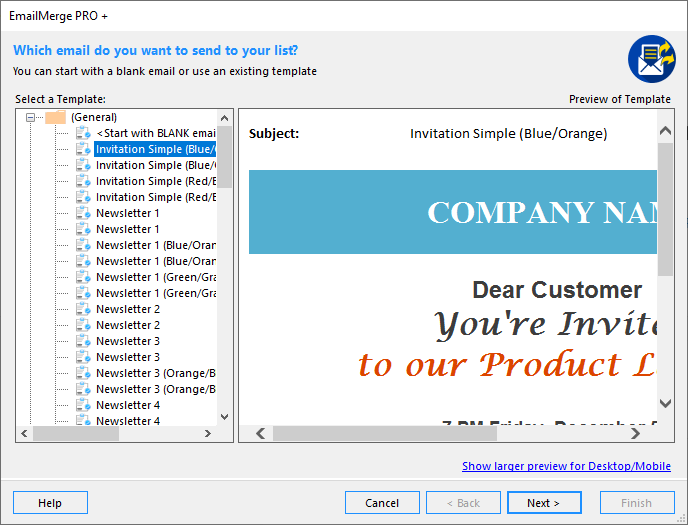
Start the EmailMerge process by writing a new document or selecting a pre-set email template.

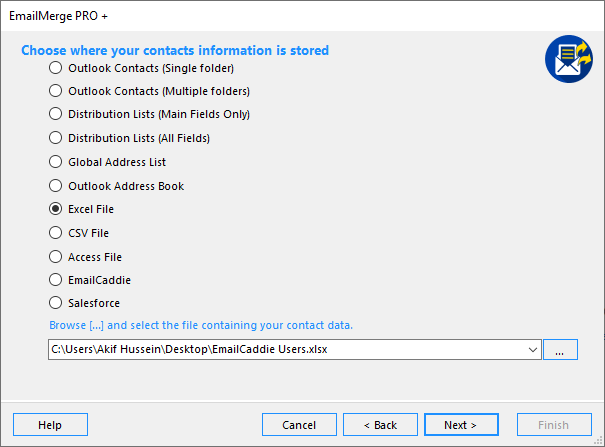
Edit recipient list with Outlook contacts, Excel files or external sources and define what to do for missing mail merge fields.
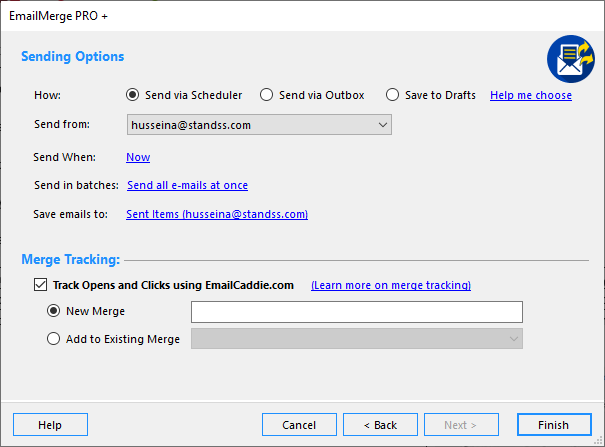
Preview your personalized mail merge messages and send them ASAP, or schedule them for another date.
Pro$100 / year |
Pro + Tracking$200 / year |
|
|---|---|---|
| Subscribe | Subscribe | |
| Operates inside Microsoft Outlook When you’re ready to create your email message, just use the EmailMerge for Outlook toolbar on the Outlook email window. |
||
| Easy to use Send Wizard Steps you through the creation and send process. You'll never have to stop and wonder what you should do next EmailMerge for Outlook takes care of it all. |
||
| Insert personalized fields within the email For example, instead of greeting your reader with "Dear Friend", you can include your reader's first name (for example, "Dear Chloe"). This catches their eye and encourages them to keep reading. |
Unlimited | Unlimited |
| Merges in background (so you can use Outlook) Emails are created as they are sent out in the background so you can continue to with your work reading and writing emails while the merge is taking place. |
||
| One-Click Quick Merge Makes simple mailings even faster. |
||
| Use the Scheduler for easy Pause, Cancel and Reschedule Reschedule, cancel and make changes to merges without having to delete emails or redoing the whole merge again. |
||
| Unattended merges (Auto-Shut Down) Have a merge that you need to run late at night. EmailMerge can automatically shut down your computer once it finishes. |
||
| Use any contact from your Outlook Contacts folder, sub-folders, or distribution lists Create and save different lists of people (for example, Sales Team) and send personalized emails at the click of a button. |
||
| Uses Outlook categories to organize your contacts Grouping your contacts into categories (for example, Clients, Prospects, Neighbors) enables you to quickly locate the addressees you need. |
||
| Auto-add Unsubscribes and Bouncebacks to a Do-Not-Send list Ensure that you do not email people who ask to be removed or invalid email addresses using the built-in Do-Not Send List. You can add Unsubscribe links to emails and unsubscribes and bouncebacks (invalid email addresses) can automatically be imported to the list. |
||
| Send email with attachments Ideal for sending calendars, Microsoft Excel files, Microsoft Word documents even amusing videos! |
||
| Supports HTML and RTF formats Send highly polished, eye-catching emails. Ideal for those whose livelihood depends on attractively presenting information (graphic designers, website designers). |
||
| Template Manager Save time, rework and mistakes by using EmailMerge 6's integrated Template Manager to create and use your own templates. Save your templates in different categories so that they are easy to find and use. If you send out emails with similar formatting or content then this feature alone will save you a lot of time by reducing the amount of rework you need to do each time you send out emails. |
||
| Professionally designed email templates Professional Designs that you can use immediately to create your own newsletters. All templates can easily be edited (you don't have to be a HTML or graphics guru). |
20 | 20 |
| Works with Outlook 2016, 2019, 2021 & 0365 Take advantage of the new Outlook features without having to give up EmailMerge for Outlook. |
||
| Automatic replacement of any empty m-fields with text Your emails will always look professional. For personalized emails, define rules for how EmailMerge for Outlook handles missing contact fields. For example, if a specific contact doesn't include a last name, set up EmailMerge for Outlook to replace [LastName] with "Colleague" |
||
| Preview Emails before creating and sending You can now preview emails in the EmailMerge Wizard to see exactly how they will look when they are created for sending out. It's reassuring to see that the emails have been personalized with ALL the required information before they are created and sent out! |
||
| Supports CC or BCC fields CC or BCC a copy of all merged emails to any email address for tracking purposes. |
||
| CC or BCC based on field data EmailMerge PRO lets you CC and BCC emails to multiple recipients based on field data. You could send emails to a primary email address and CC them to say an assistants email address or you could BCC all emails to relevant sales managers. |
||
| Send attachments to recipients Attach as many files as you want to your master email. All recipients will get a copy of all attachments. |
||
| Send attachments to recipients based on field data Send personalized attachments using the EmailMerge Wizard… choose what data field has the name of attachments and EmailMerge will send a different attachment to each recipient. |
||
| Faster Loading of Contacts Nobody likes waiting around for the computer to do its work. Your contacts will now load up to 4X faster. |
||
| Save Sent (merged) emails to a different folder With EmailMerge you can choose a destination folder where merged emails will be filed… or you can choose to have the emails deleted after they are sent. You will have a cleaner less cluttered Sent Items folder and better control over your campaigns. |
||
| Emails created and sent out automatically (or created in the Drafts folder) For particularly SENSITIVE EMAILS, you may feel more comfortable seeing the actual email (not just a Preview) before they are sent out. EmailMerge can create and save emails to the Drafts folder. You can check them and add additional content to selected emails if you wish before sending them out manually. |
||
| Batch Send Emails from the Drafts Folder You can still send emails out easily if you chose to create emails to the Drafts folder (instead of sending them out automatically). Select multiple emails from the Draft folder and have them all sent out at the click of one button (instead of having to open and send each email one at a time). |
||
| Superior support for mailing lists saved in Excel, Access and CSV files EmailMerge for Outlook can work directly with mailing lists saved in Excel, Access and CSV files. You no longer need to rename the fields to match Outlook field names… EmailMerge will use the fieldnames you have in your data. |
||
| Do Not Send List ELIMINATE the risk of annoying customers using EmailMerge’s Do Not Send List. Add an email address to that list and EmailMerge will never send an email to that address… even if you accidentally decide to. You can be rest assured that your emails will not annoy your customers or get you blacklisted to their Junk Mail folders. |
||
| Delayed batch sending Works around restrictions some ISPs have for the amount of email sent at one time. |
||
| Send on behalf of other users (Microsoft Exchange® Only) Enables others to send email on your behalf (for example, an assistant sending email for a manager). |
||
| Choose email account to send from (that is, send personalized emails from any email account – not just the default account) Many of us now have different email accounts (for example, one for personal use and one for business). For each EmailMerge, you can specify the email account EmailMerge Pro for Outlook uses when sending. This ensures that your addressees recognize who the email is from and keeps the email out of the spam folder. |
||
| Use Contacts from external sources: - Microsoft Excel® file - Microsoft Access® file - Global address list - CSV file This feature is great if you’re working with a temporary contacts list that you don’t want to import into Outlook. |
||
| Advanced Contacts Filter Quickly isolate a list of contacts with specific criteria (for example, sending only to contacts in Arizona). It’s a quick and specific way to narrow your addressee list. |
||
| List Manager Segment your Outlook and Excel contacts using Categories. Then use these segments in the EmailMerge Wizard to send out targeted emails to specific segments. |
||
| Track your merges (Opens and Clicks) Receive an email notification whenever someone opens or clicks on a merge you have sent out. Get instant notification as to who opened or clicked on the email, when, where and how (what device they used). |
||
| View Tracking Information at my.emailmerge365.com Compare open rates, click rates etc for different merges. See exactly who has opened or clicked on an email at the click of a button. |
||
| Re-merge (Use tracking data from inside EmailMerge) Increase response rates and sales by doing follow-up merges to everyone who opened, clicked, did not open etc. EmailMerge makes it easy by making this data available inside the Wizard for you. |
||
| Use Salesforce data from within the Wizard Merge directly to Salesforce Contacts without having to export from Salesforce and importing into EmailMerge. |

Standss has been providing Outlook-based solutions to businesses since 2002. Our developers and support team have experience with both Outlook and NetDocuments and are ready to serve you today. Download the EmailMerge free trial, or buy EmailMerge for your business now.

Volume discounts are available. Contact our sales team for a quote now.
Contact SalesEmailMerge delivers the flexibility and ease of use that we didn't find in other products that we tested.
- Andrew Dickenson, Newbury UK
The support for this product is incredible... just great.
- Dennis A. Sanford
Instead of our marketing emails being regarded as spam, we now send personalized emails using your email merge software, and our clients love it! The response has been 100% better!
- PrimeVision Limited, Fiji
I have found emailmerge pro the most useful tool in my marketing armoury! It is simple to use, has some great options for sending emails, and is of great value to any business wanting a mass email facility.
- Lori Hope, Spraytanz Ltd
If you can’t find the answer to your question below, you may find more information in our expanded product FAQs or in our Documentation and Knowledge Base section.