
The BIGGEST feature in the new EmailMerge Version 5 is the new Scheduler. In this article, I will explain WHAT the Scheduler is, WHY it is important and HOW to use it.
In older versions of EmailMerge, emails were immediately created in your Outbox and the end of the merge process. This had the unfortunate side effects of locking up Outlook during the merge process and cluttering up the Outbox. This made a lot of things more difficult than needed.
When you use EmailMerge’s Scheduler, the emails are created only when they need to be sent. There are a lot of benefits to this.
In the older version of EmailMerge users had to wait, while EmailMerge was processing your merges. Due to this limitation, you could not use Outlook for any other work. Now with new version, the scheduler runs in the background processing your merges and you can use Outlook and your Outbox for normal emails.
Any form of clutter can be a barrier to your productivity. With the new scheduler your Outbox is not flooded with emails waiting to be sent out and what’s more is that normal work emails won’t get lost in the sea of merge emails waiting to be sent out.
What’s even better is that you can now Pause or Cancel a merge at the click of a button. This feature wasn’t available with the older version of EmailMerge- in the older version you had to manually delete your scheduled merges from your Outbox. So, if you had 1000 merges scheduled and for some reason you wanted to delete that you would have to perform that process manually. Thanks, to the scheduler you no longer have to deal with all that hassle.
An excellent feature for all users is the “Auto-Shutdown”. The new Scheduler can shut down your computer after the merges are complete. So, if you have to run a big merge at the end of the day or in the middle of the night you can rest assured that your computer will shut down by itself after the merges are complete. The Scheduler gives you the ease of convenience that was not available with the older versions of EmailMerge.
To use the scheduler, you need the latest version of EmailMerge V5 installed in your computer. If you still haven’t upgraded to EmailMerge V5 you can do so using this link: https://www.standss.com/emailmerge/v5_upgrade.html
Please note that we will not be making any updates and maintenance to the older versions of EmailMerge. So, we highly recommend that you upgrade.
Use the EmailMerge Wizard to create your merge like you normally do. On the final step, you will now see an option to use the Scheduler.
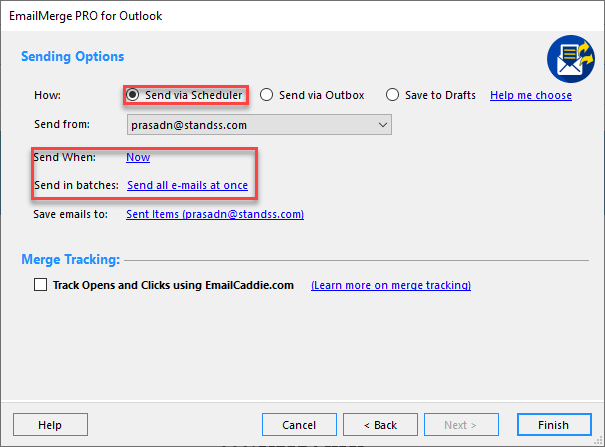
Once when you have selected the Send via Scheduler option, you have the option of sending your emails at a specified time using the Schedule Send function.
Click Finish. You will get the EmailMerge Scheduler Screen.
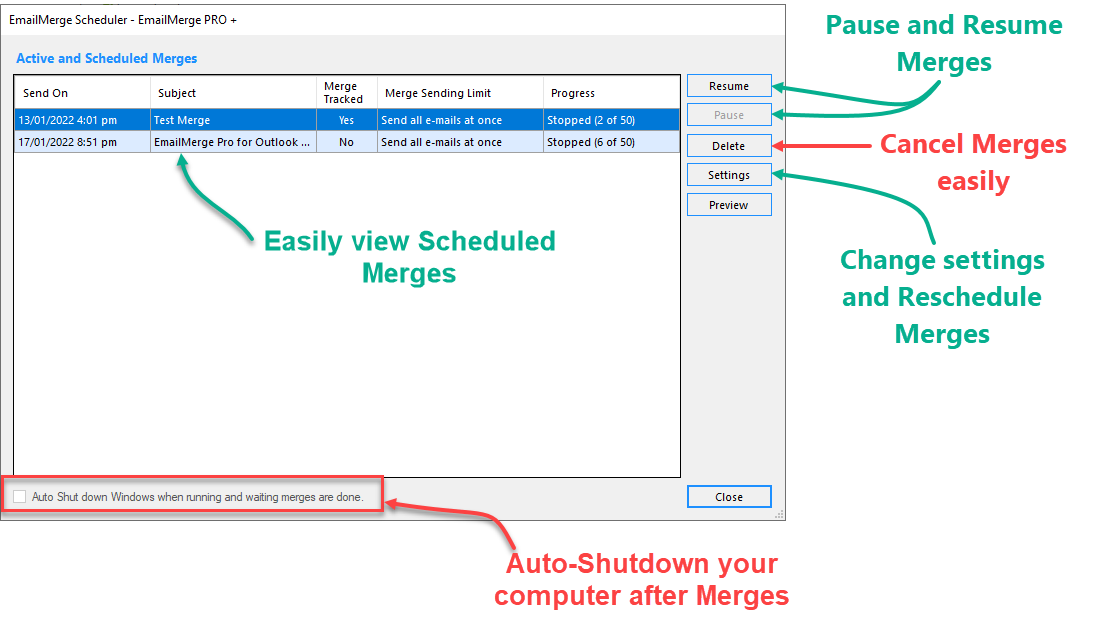
As you can see in the above screen, I have scheduled 3 merges which will be sent out accordingly. The merges are easy to see, pause, cancel or make changes to.
Pausing and cancelling merges is really easy with the Scheduler. This was not even possible with the older version because the emails were already created in your Outbox.
Select the merge and then click Pause if you want to stop a running or scheduled merge. If you want to resume the merge again at the same time or at a different time, you will have to do so through the “Settings” option.
Click Delete if you want to cancel the merge altogether.
Changing the date and time of a scheduled merge is easy. Simply select the merge and click the Settings button.
You can even use the Preview button to review the recipients and email before sending.
(In the old version, you would have to delete out all the scheduled emails from the Outbox and run the merge all over again).
Select the “Auto-Shutdown’ checkbox to automatically shut down your computer when you have to send large merges. Sending out large merges can take time; in such a scenario the “Auto Shutdown” feature does come in handy. You can leave your computer on while the merges are being sent out and when the merge process is finished, the scheduler can shut your computer for you. However, keep in mind that other applications should be closed and only Outlook should be running.
Trusted Software from a Microsoft Partner
Standss has been providing Outlook based solutions to businesses since 2002. Our developers and support team have experience with both Outlook and NetDocuments and are ready to serve you today

Volume discounts available, contact our sales team for a quote now
Contact Sales© , Standss (South Pacific) Limited. All Rights Reserved.