
SendGuard for Outlook NOW AVAILABLE on iOS and Android!
Have You Ever Sent a Confidential Email to the Wrong Person?
Misdirected emails (sending emails to the wrong recipient) and mis-attached files continue to be a leading cause of compliance violations and accidental data loss for organizations. According to research from the Ponemon Institute, 65% of all data loss incidents occurred via email, and nearly two-thirds of organizations experienced data loss or exfiltration due to an employee mistake on email.
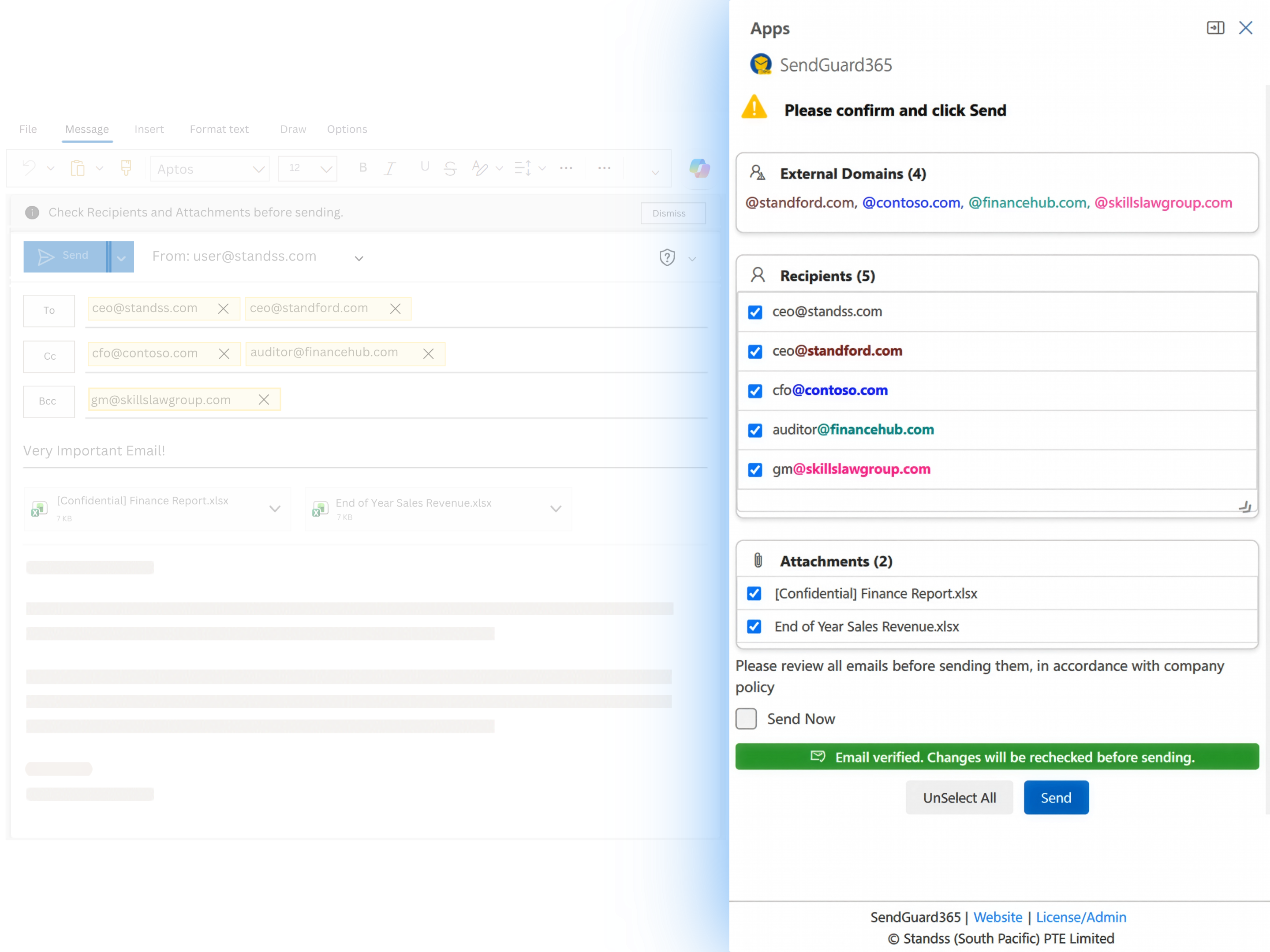
Outlook makes it too easy to send an email to the wrong address, but SendConfirm can help prevent this issue. SendConfirm displays an in-depth Outlook send confirmation prompt each time a user clicks Send. This reminds them to double-check messages, recipients, and attachments before they continue sending the email, preventing the spread of confidential data to the wrong people.
SendConfirm is Your Easy-To-Use Outlook Reminder Before Sending Email Messages

- Prevent important data from leaking with
an email confirmation prompt: SendConfirm requires user confirmation to send an email,
preventing the delivery of confidential messages and attachments to unrelated third
parties.
- Reduce the risk of sending the wrong
message: The confirmation prompt encourages users to check for issues caused by Outlook's
autocorrect and typos — and by adding new rules, you can automatically flag sensitive data or
inappropriate content.
- Minimize your legal liability as a business: All actions are automatically recorded to the Windows Log or Text files, maintaining proof that any errors are on the user's part and not organizational negligence.
Features of Our Outlook Email Checker
SendConfirm helps prevent the loss or spread of vital company data by prompting users to review recipients, attachments, and message content before sending.
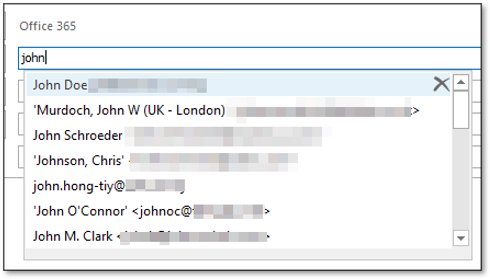
Get a prompt in Outlook to review emails before sending
Easily choose when the confirmation prompt is shown, including external emails, internal emails, attachments, and other conditions.
Highlight external addresses
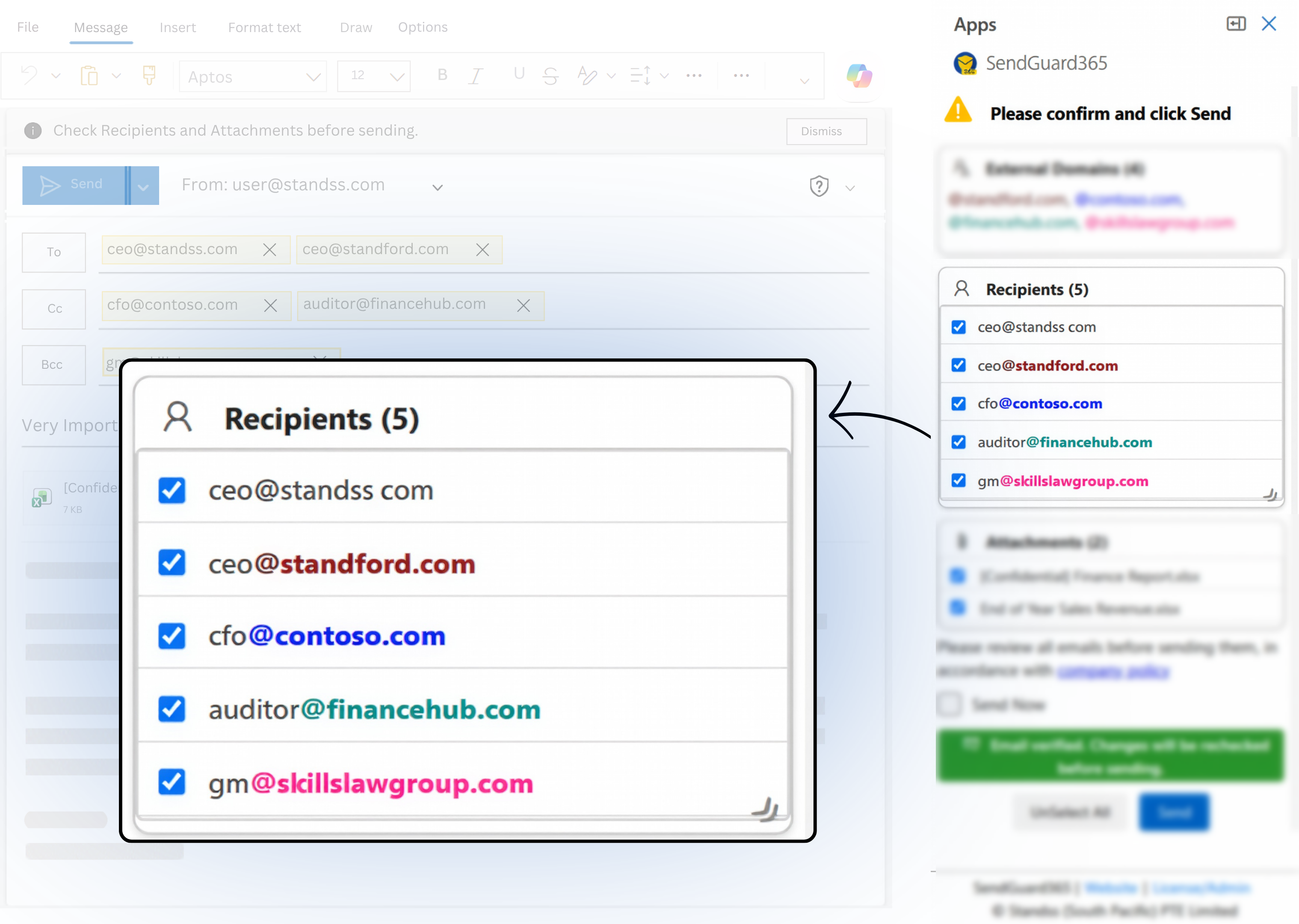
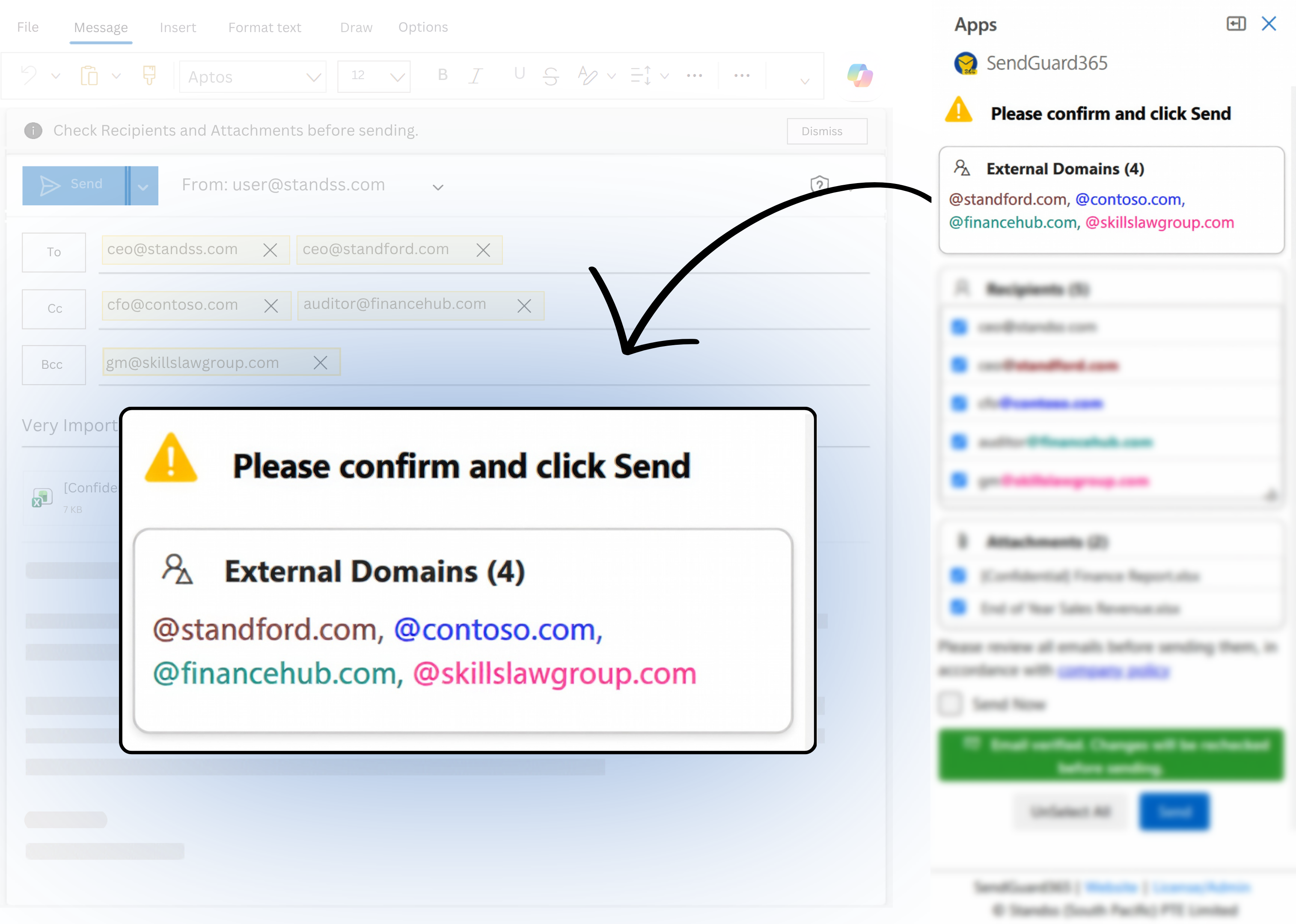
External email domains are color-coded so users can quickly verify the intended recipient account before sending.
Review attachments before sending
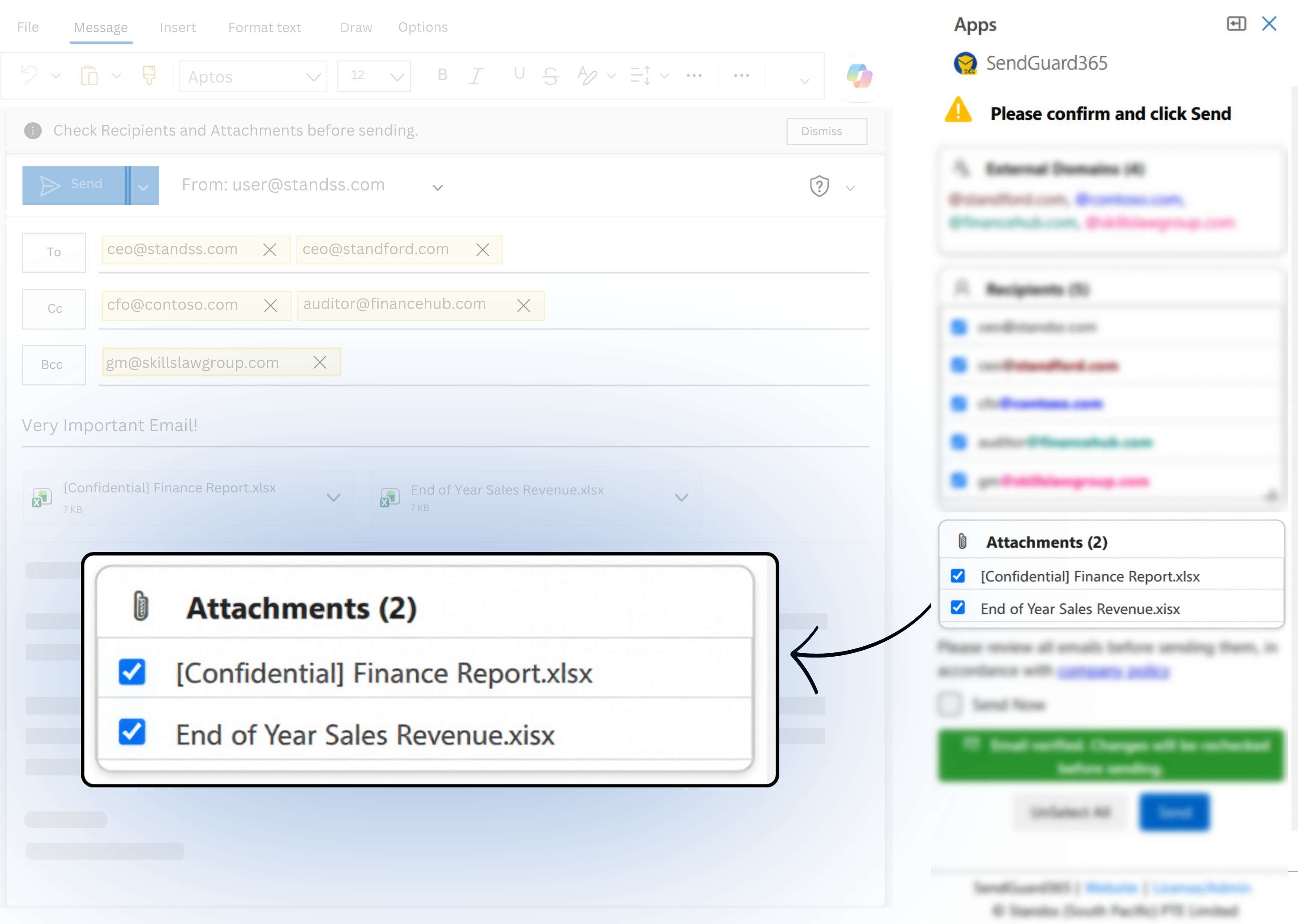
SendConfirm presents attachments in a simple review list to reduce the risk of sending incorrect or unintended files.
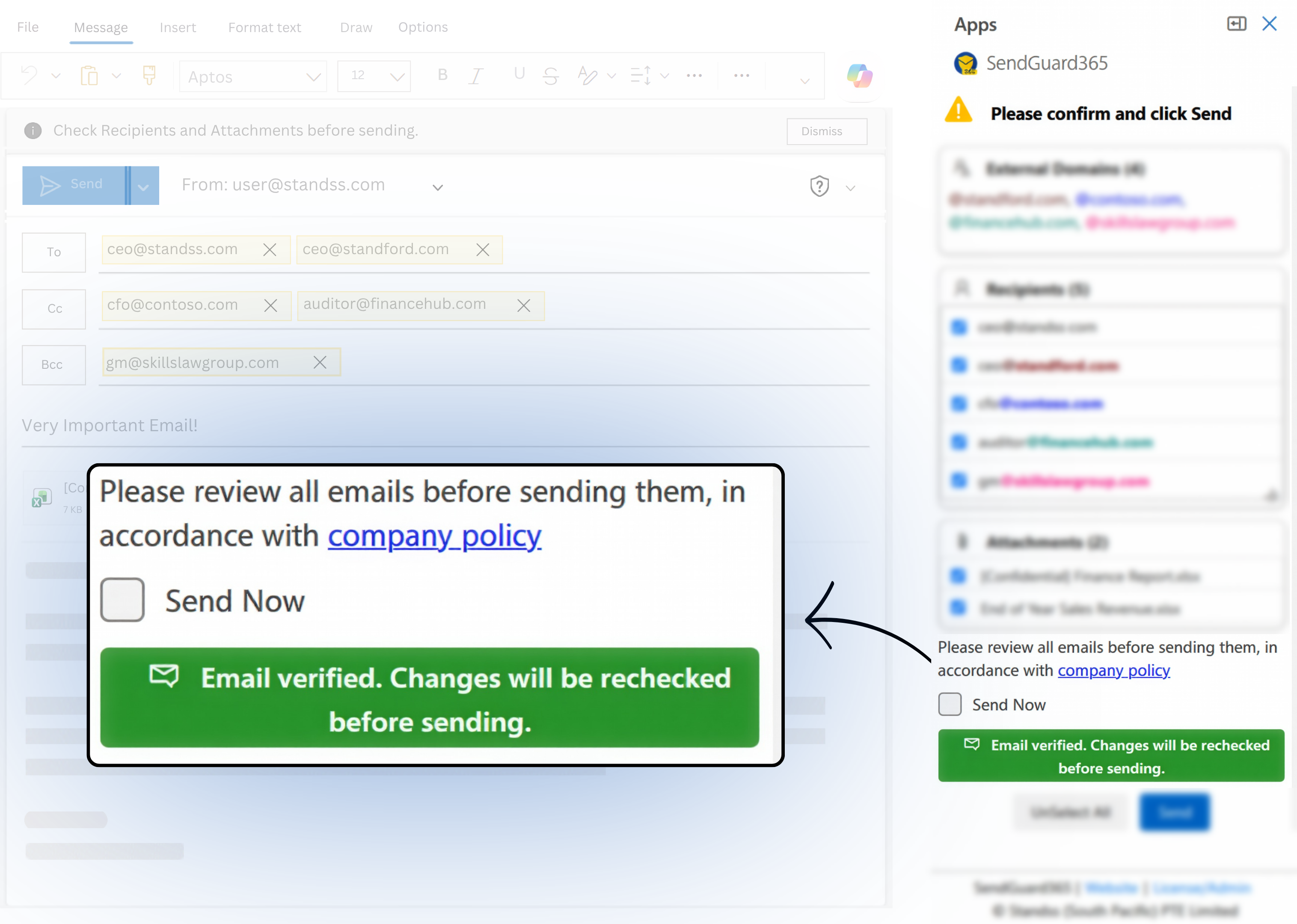
Display your company policies before each email
Customize the confirmation prompt with your branding and policy text so each message follows your organization's compliance requirements.
Reduce errors from Outlook's auto-correct
A final review step helps users catch mistakes introduced by auto-correct and other rapid composition errors.
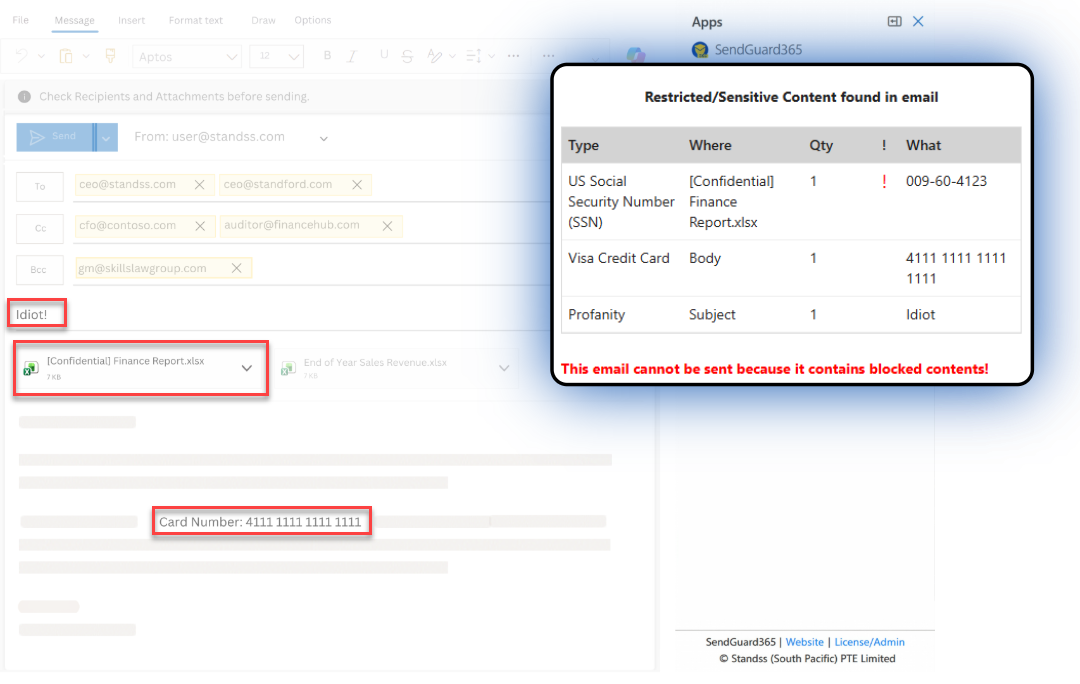
Prevent users from sending blocked content
The SendConfirm prompt can automatically flag sensitive or inappropriate text, including patterns like credit card numbers and restricted keywords.
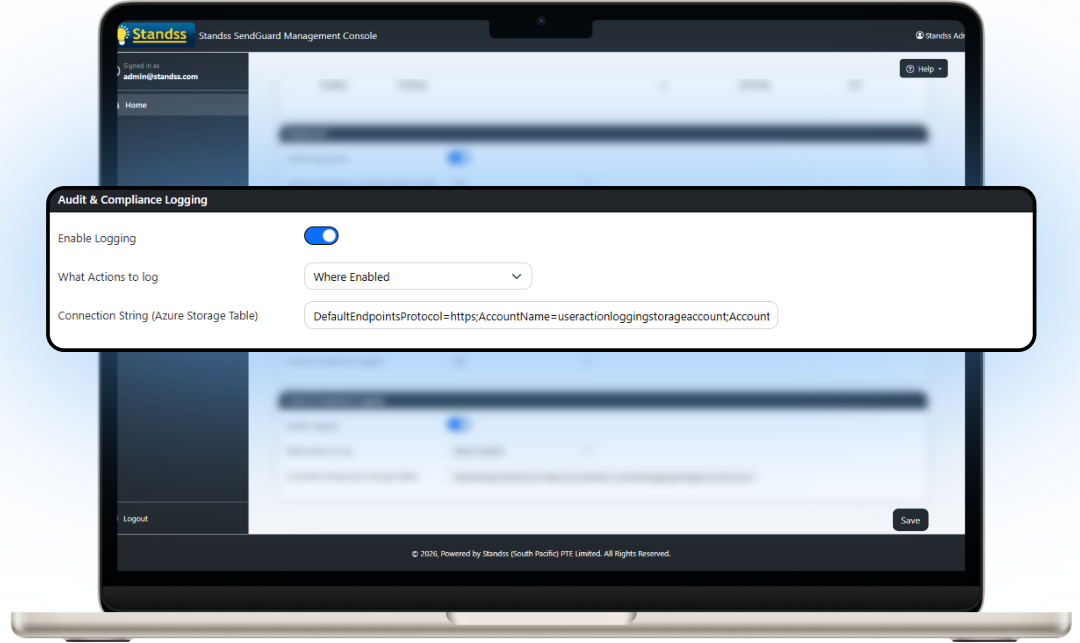
Automatically log user actions for accountability
Actions can be logged to Windows Event Log or text files, keeping an audit trail that prompts were displayed and user actions were recorded.
Built for Enterprise Deployment & Administration
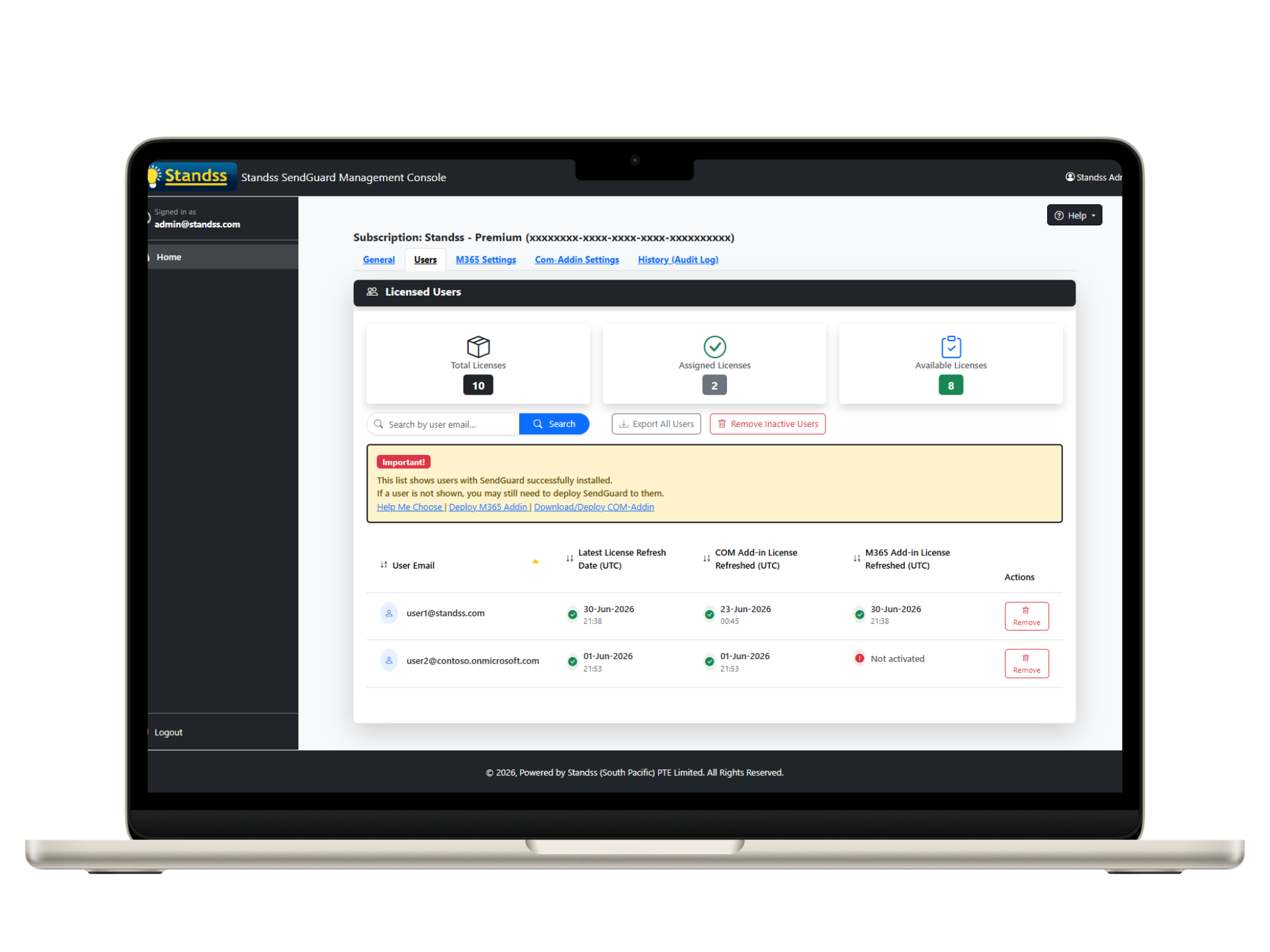
Deploy and manage SendConfirm across your organization with centralized administration tools designed for IT teams.
- ✓ Deploy with preset settings using a customized MSI
- ✓ Hide the Settings screen from end users
- ✓ Deploy using GPO, SCCM, msiexec or other deployment tools
- ✓ Centrally manage settings using ADMX/ADML templates
- ✓ Simple MSI + registry deployment for smaller networks
- ✓ Request the Administrator Guide
How to Use Our Outlook Tool to Confirm Messages Before Sending
Once SendConfirm is installed in Microsoft Outlook, the confirm before send feature will automatically be displayed each time you send a message. Recipients with external domains are color-coded, as confidential information sent to the wrong organization can cause the most significant damage. SendConfirm lets you easily remove recipients and attachments directly from the confirmation window. Learn more about setting up SendConfirm here.

Now Works With New Outlook and Outlook Web Access (Office 365)
SendConfirm lets you confirm before sending emails in Outlook 365 (Outlook Web Access), New Outlook, and Outlook Desktop. The New Outlook and OWA versions retain the reliable functionality of the desktop version with its most essential features. SendConfirm can be centrally deployed and managed by your Microsoft Office 365 Administrator.
SendGuard for Outlook NOW AVAILABLE on iOS and Android!


Trusted Software from a Microsoft Partner
Standss has been providing Outlook-based solutions to businesses since 2002. Our developers and support team have experience with both Outlook and NetDocuments and are ready to serve you today.
Compare Versions
Choose the appropriate version of SendConfirm or SendGuard based on your security and corporate requirements. The trial version has all features, but individual features can be turned on and off as required.
|
SendGuard Lite |
SendGuard Pro |
SendGuard Premium |
|
|---|---|---|---|
| Prompt to confirm before emails sent out |
|
||
| Prompt to confirm when recipients from multiple domains |
|
||
| Prompt when email has attachments |
|
||

Support Linked Files (OneDrive, etc.): Show Linked files attached to emails on SendConfirm prompt. |
|
|
|
|
Confirm encryption before sending email. |
|
|
|
| Attachment Guard: Insert attachment names to emails, rename attachments before sending, etc. |
|
|
|
| Set filters to control when prompt is displayed (internal emails, external emails, etc.) |
|
|
|
| Customizable message on prompt |
|
|
|
| Lock or hide settings from users |
|
|
|
| Custom branding (logo) and corporate policy link |
|
|
|
| Log result to Windows Log or text file |
|
|
|
|
Analyze logs using Power Bi or Splunk for auditing and risk assessment |
|
|
|
| Reply Guard: Prompt when Reply All clicked |
|
|
|
| Prompt for Credit Card Numbers, Social Security Numbers and any definable other text patterns |
|
|
|
| Send Rules: Run complex rules to prompt or block outgoing emails |
|
|
|
| Account Guard: Ensure emails are being sent from correct email account |
|
|
|
| Delay Guard: Delay emails in Outbox so that you can undo sends |
|
|
|
| Subject Guard: Clean subject lines of spam markings, etc. |
|
|
|
| Basic DLP: Use Send Rules to scan email subject & body for words or patterns (credit card numbers, personal health information). |
|
|
|
|
Custom Scripts for Special Checks: Based on your security needs, we can create custom scripts for your company to perform special checks on outgoing emails. |
|
|
|
|
Send Rules: Rules can be based on contents of attachments. (Click here for more information) |
|
|
|
|
Advanced DLP Scanning: All the features of Basic DLP plus ability to scan inside attachments. Also includes a Central DLP screen to scan for multiple patterns and report on one prompt. |
|
|
|

Buying for Your Team?
Volume discounts are available. Contact our sales team for a quote now.
Contact SalesWhat Our Customers Are Saying About SendConfirm for Outlook
I am very happy with SendGuard. It allows me to send email quickly without too much worrying about missing attachments and things like that. Nice product, good price.
- John Fischer, Prezza Technologies, Inc.
SendGuard have been of great use for me and my small company. We no longer worry about to whom we are sending email(s) and we always have the safe guard of SendGuard
- Bernie Hamblin, President, Bernie Hamblin Estimating, Inc.
One of our clients was having an issue with sensitive information accidently being sent out to the wrong recipients. Unfortunately, it happened more than once. We were able to deploy SendGuard via Microsoft 365 ensuring our clients piece of mind quickly and easily.
- Chris Morozin, President, VMX Technologies, LLC.
SendGuard is an “embarrassment saver”. It prevents you from embarrassing yourself by forgetting to actually attach files that your message says are attached. It also helps you organize the recipients of your messages into the proper categories i.e. to, cc, and bcc. It’s unobtrusive and quick. In short, it works!
- Edward Scaefer, Educational Resources, Inc.
Frequently Asked Questions about SendConfirm for Outlook
If you can't find the answer to your question below, you may find more information in our expanded product FAQs or in our Documentation and Knowledge Base section.