-
Single User/General Installation
-
Small Networks Installation with Customized Settings
-
Enterprise Deployment and Administration
-
How does SendConfirm work?
-
Setup when you want to see SendConfirm Prompt
-
Choosing between type of Prompts (Productivity vs Security)
-
How does Reply Guard work?
-
Setup when you want to see Reply Guard Prompt
-
Disable Reply-All and Forward on Sent Emails
-
Include Attachments in Reply/Reply All & Include Original Recipients in Forward
Contents
Configuring Settings via the Portal
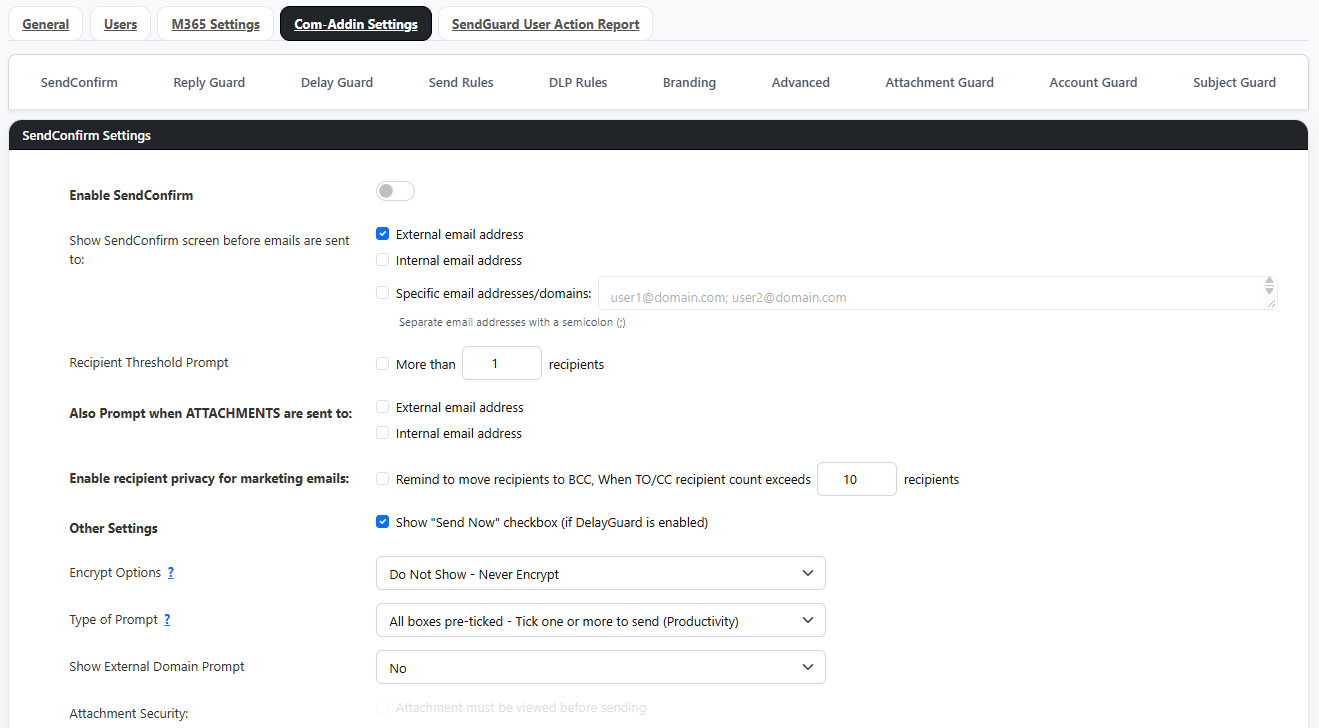
You can now configure your SendGuard settings directly from the SendGuard portal — no need to open Outlook. This is the quickest way to set up and manage settings across your account.
- Log in to the SendGuard portal.
- Go to the Com-Addin Settings section.
- Make any changes that you need on the various tabs of the Settings screen.
- Click Save to apply your settings.
Note:
Settings configured in the portal are applied to your SendGuard installation. To prevent users from
changing settings locally, click here to read about
preventing users from changing settings.
Configuring Settings via Outlook
Once you have downloaded and installed the addon, go to the Settings screen.
- Open Outlook.
- Click on the Standss Outlook Addins tab on the ribbon.
- Click on SendGuard and then click Settings to open the Settings screen.
- Make any changes that you need on the various tabs of the Settings screen.
- Click OK to save settings.

Note:
There are a few additional settings that are generally only used for enterprise deployments.
Click here to read about preventing users from changing settings.
Once you have settings configured on one computer, you can use the Export Settings button
to deploy the same settings on other computers. Click
here to go to Installation and Deployment page.

30 Days Money Back Guarantee
We are so confident about our software, that we offer a 30-day money-back guarantee! This way, you can try SendGuard without risking a cent of your money. If you aren’t satisfied for any reason, or it doesn’t live up to your expectations, you won’t be out one red cent. Just e-mail us and we’ll refund your entire payment. Right up to the final day of your 30-day guarantee. No Questions Asked!

Buying for your team?
Volume discounts available, contact our sales team for a quote now
Contact Sales