-
Single User/General Installation
-
Small Networks Installation with Customized Settings
-
Enterprise Deployment and Administration
-
How does SendConfirm work?
-
Setup when you want to see SendConfirm Prompt
-
Choosing between type of Prompts (Productivity vs Security)
-
How does Reply Guard work?
-
Setup when you want to see Reply Guard Prompt
-
Disable Reply-All and Forward on Sent Emails
-
Include Attachments in Reply/Reply All & Include Original Recipients in Forward
Contents
User actions are recorded in the Windows Event Log and on text files
based on the logging options selected in SendGuard. The log feature
can record users' clicks when they either choose to Send or decline
sending of email using SendGuard prompt.
Administrators can optionally activate logging. When this is
activated logs are maintained of basic details of the email as proof
that the user was prompted for confirmation before an email was
sent. These logs are in standard format and can be used with
PowerBI/Splunk etc for compliance reporting, impact assessment etc.
If you still want to continue using SendGuard version 4, user
actions that are logged in the reporting tool, will be converted
into the new JSON Standard through a transformer.
There are some sample/templates of Power BI reporting for SendGuard
logs. For more details on reporting contact:
sales@standss.com
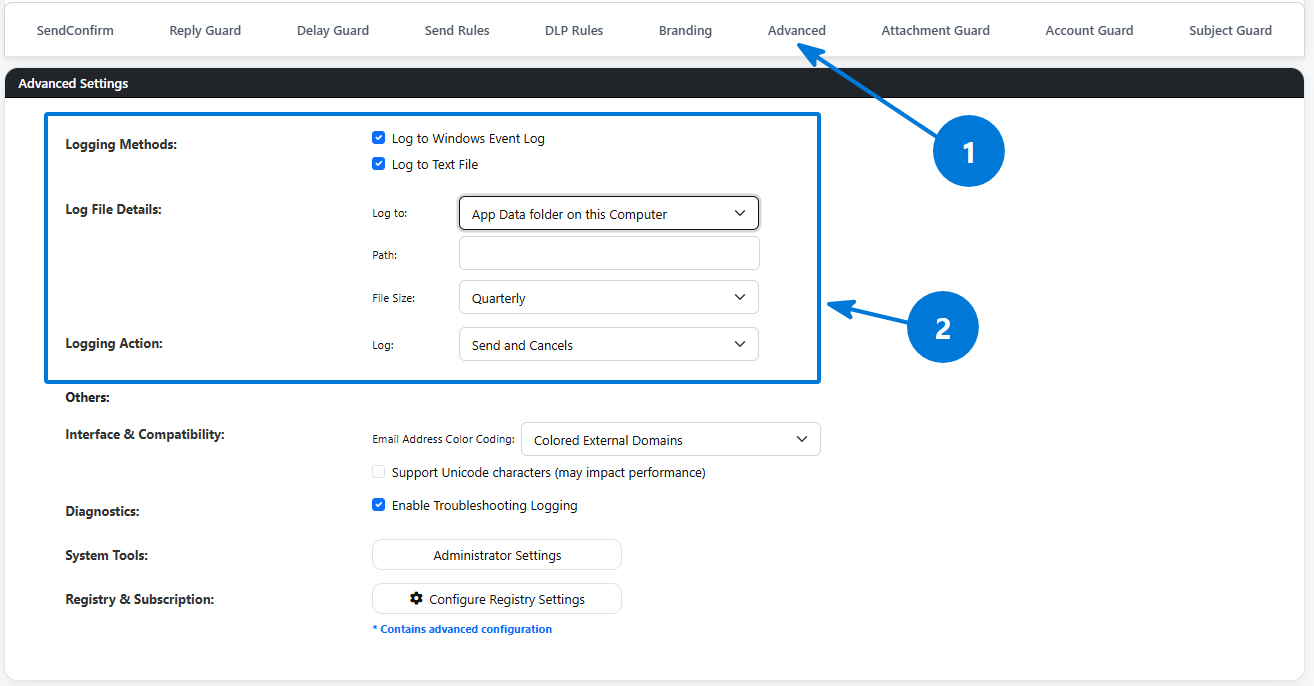
Setting up Logging via the Portal
- Log in to the SendGuard portal.
- Go to the Com-Addin Settings section.
- Open the Advanced tab.
- Set up your logging preference and click Save.
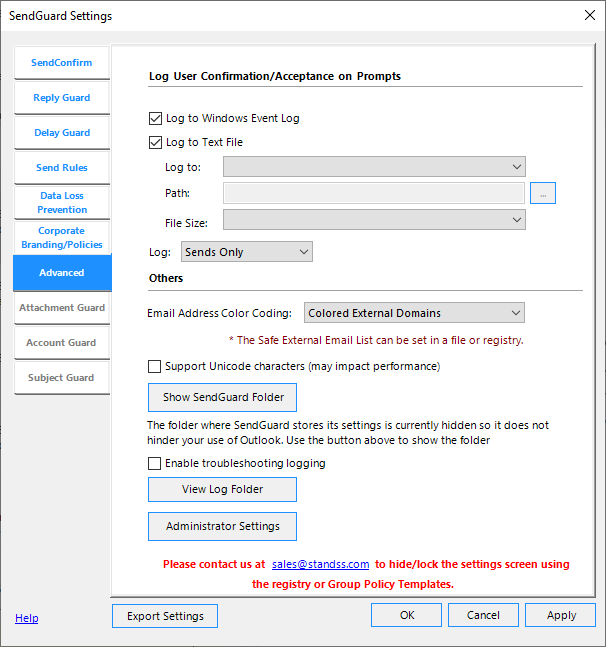
Setting up Logging via Outlook
- Open Outlook.
- Click on the Standss Outlook Addins tab on the ribbon.
- Click on SendGuard and then click Settings to open the Settings screen.
- Select the Advanced Tab.
- Set up your logging preference and click OK to save.

30 Days Money Back Guarantee
We are so confident about our software, that we offer a 30-day money-back guarantee! This way, you can try SendGuard without risking a cent of your money. If you aren’t satisfied for any reason, or it doesn’t live up to your expectations, you won’t be out one red cent. Just e-mail us and we’ll refund your entire payment. Right up to the final day of your 30-day guarantee. No Questions Asked!

Buying for your team?
Volume discounts available, contact our sales team for a quote now
Contact Sales